
Drive Docking Station | Offline Clone for 2.5/3.5 Drives | USB 3.0
The 2 bay HDD docking station lets you get to and copy bare hard drives. You don't need a computer. Its main feature is one-button offline cloning. This makes it a helpful tool for upgrading storage. ...
- Secure checkout
- All major cards
- Tracked delivery
Good to know
Questions about this product
- How do I use the offline clone feature without a computer?
- First, make sure the dock is not connected to a computer via USB. Put your source drive in Bay 1 and the target drive, which must be the same size or larger, in Bay 2. After powering it on, press and hold the 'Copy' button for about 10 seconds until the LED flashes to begin the cloning process.
- What's the biggest size hard drive this dock can handle?
- This docking station supports both 2.5-inch and 3.5-inch SATA drives, including SSDs and traditional HDDs. Each of the two bays can support a drive with a maximum capacity of up to 18TB.
- Can I use two different types of drives at once, like an SSD and an HDD?
- Yes, you can mix and match drive types, for example using a 2.5-inch SSD in one bay and a 3.5-inch HDD in the other. When connected to a computer with the USB 3.0 cable, they will both appear as separate external drives. For cloning, just ensure the target drive has enough space for the source drive's data.
Drive Docking Stations spec sheet (PDF)
Get a one-page sheet with full description, specifications, technical details, FAQs, price & SKU - handy to save, print, or share.
Not sure which one?
Compare with similar products
The same kind of product, in stock, in a similar price range.
This product: £112.99 · 4.9
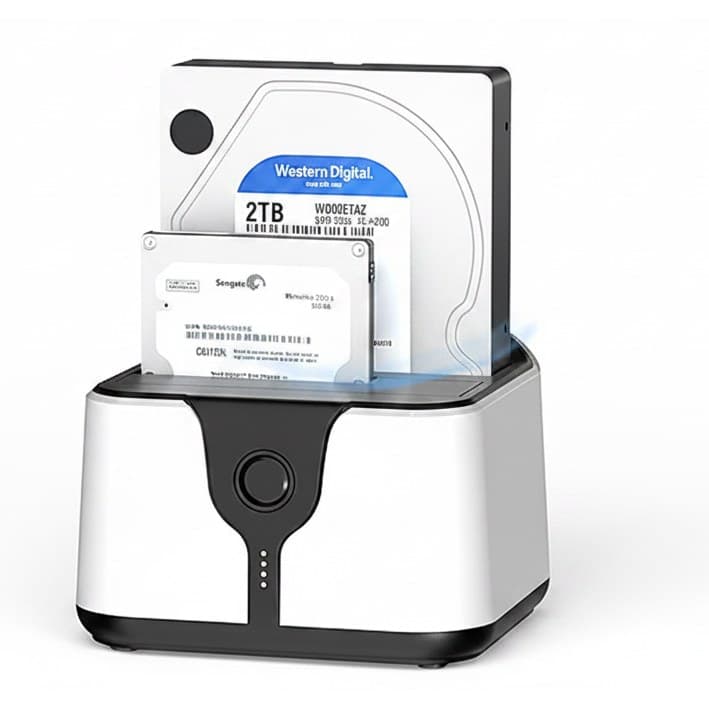
Drive Docking Station | Offline Clone for 2.5/3.5 Drives | USB 3.0
- Price
- £112.99
- Rating
- 4.9(480)
- Sold
- 2,000+
- Stock
- In stock

Drive Docking Station | Dual Bay SATA & IDE | Clones 2.5/3.5-Inch Disks
- Price
- £60.99
- Rating
- 4.6(78)
- Sold
- 339+
- Stock
- In stock
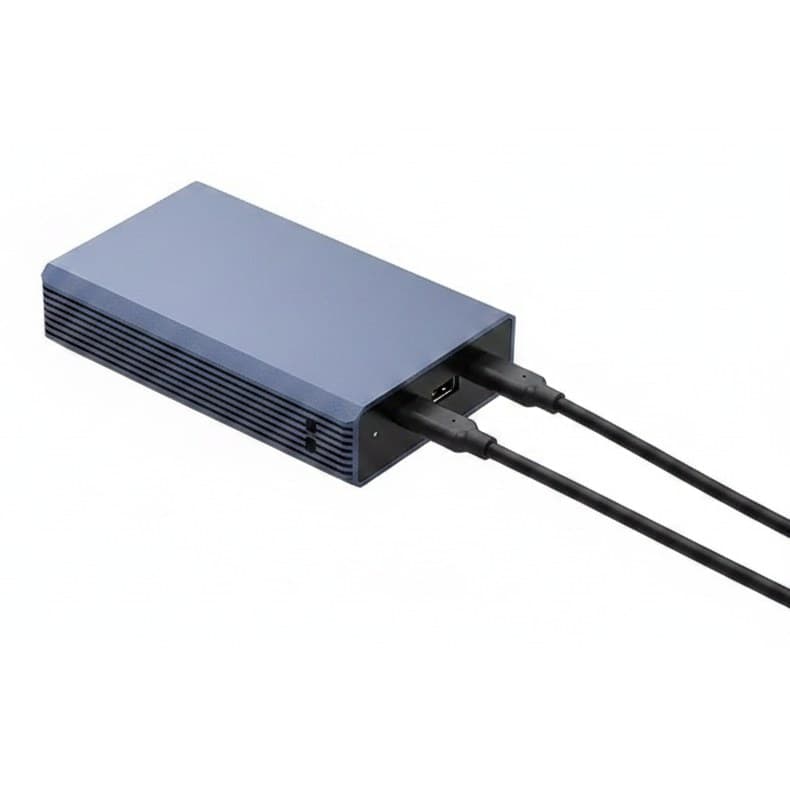
Drive Docking Station | Tool-Free 2-Bay RAID | For 2.5 SATA SSD
- Price
- £125.99
- Rating
- 4.9(169)
- Sold
- 477+
- Stock
- In stock
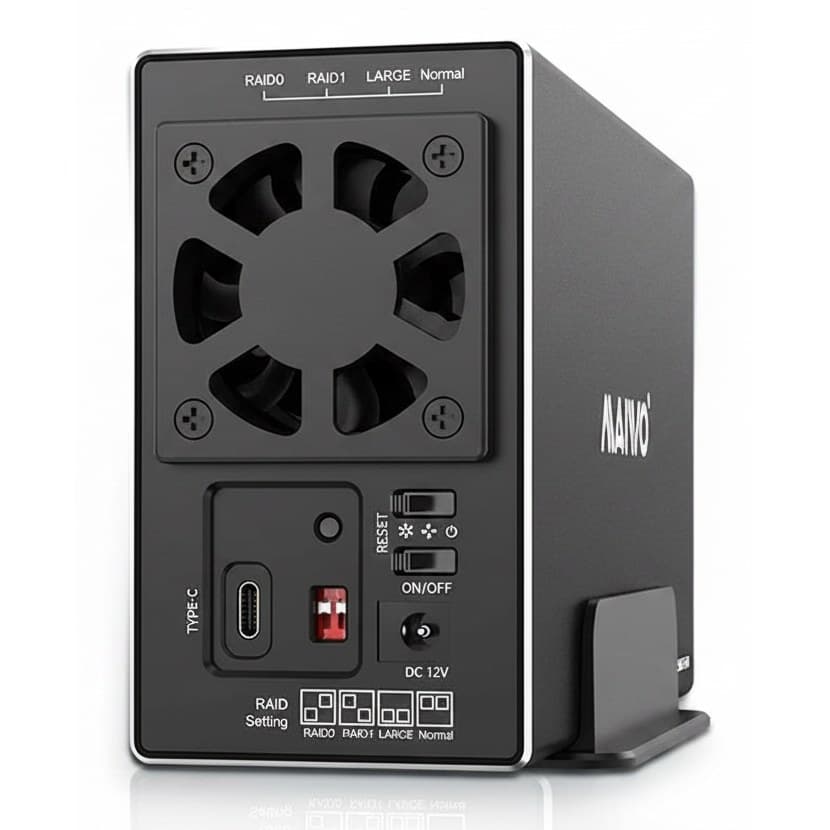
Drive Docking Station | 10Gbps USB-C Transfer | Dual Bay RAID 0/1 Support
- Price
- £223.99
- Rating
- 4.9(132)
- Sold
- 414+
- Stock
- In stock
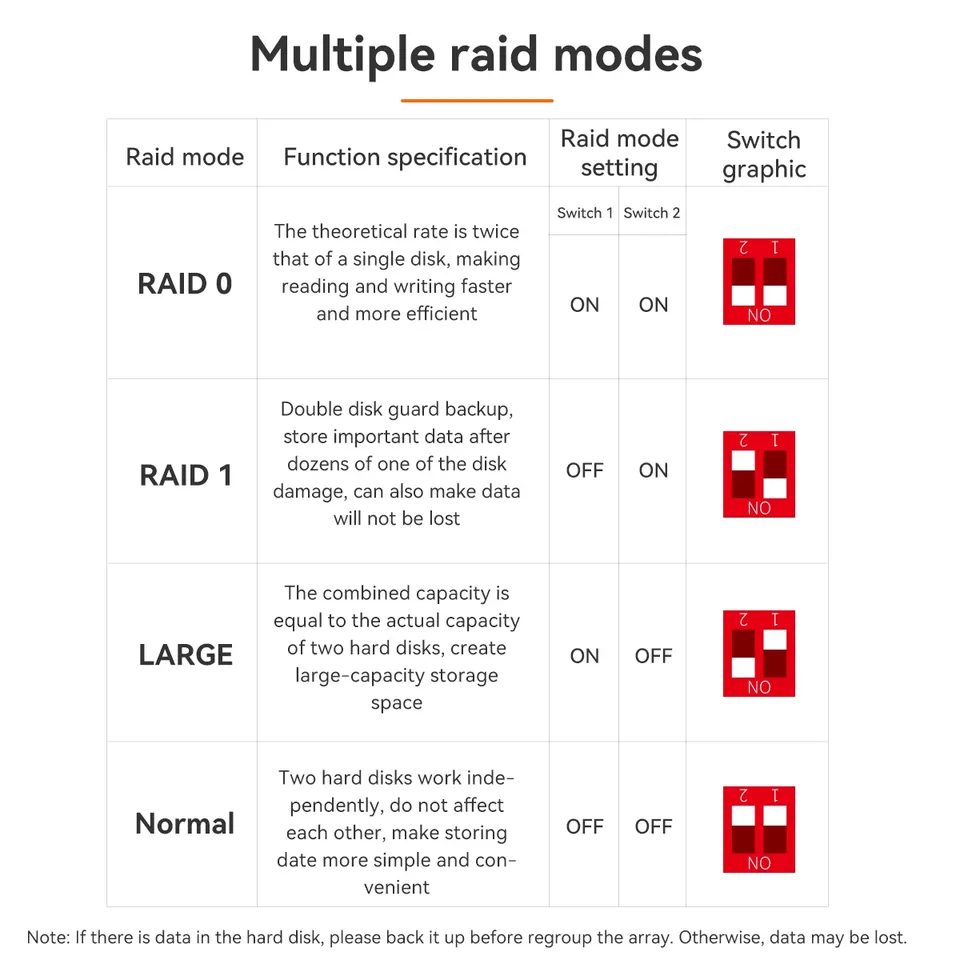
Drive Docking Station | Dual Bay RAID Enclosure | For 2.5/3.5 SATA HDD
- Price
- £203.99
- Rating
- 4.9(382)
- Sold
- 1,000+
- Stock
- In stock
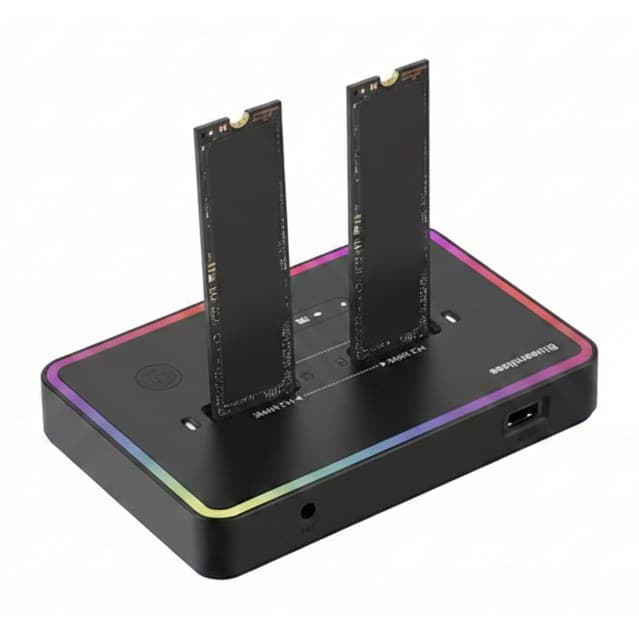
M.2 SSD Hard Drive Docking Station | NVMe & SATA Offline Cloner | 10Gbps USB-C
- Price
- £135.99
- Rating
- 4.5(223)
- Sold
- 1,000+
- Stock
- In stock
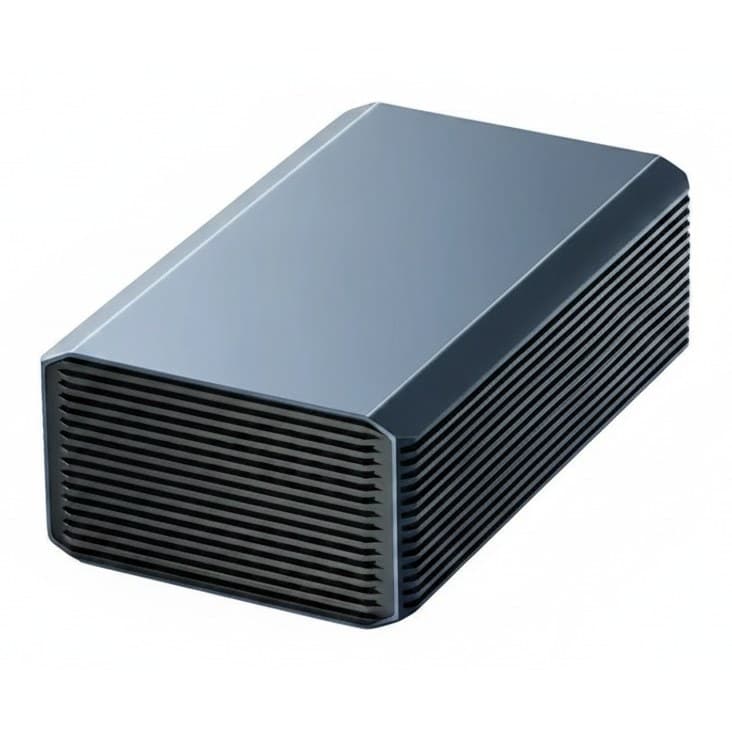
Dual Bay Hard Drive Docking Station | Empty Enclosure | 60TB Max Support
- Price
- £189.99
- Rating
- 4.7(207)
- Sold
- 1,000+
- Stock
- In stock
Explore the range
Popular in Electronics & Components
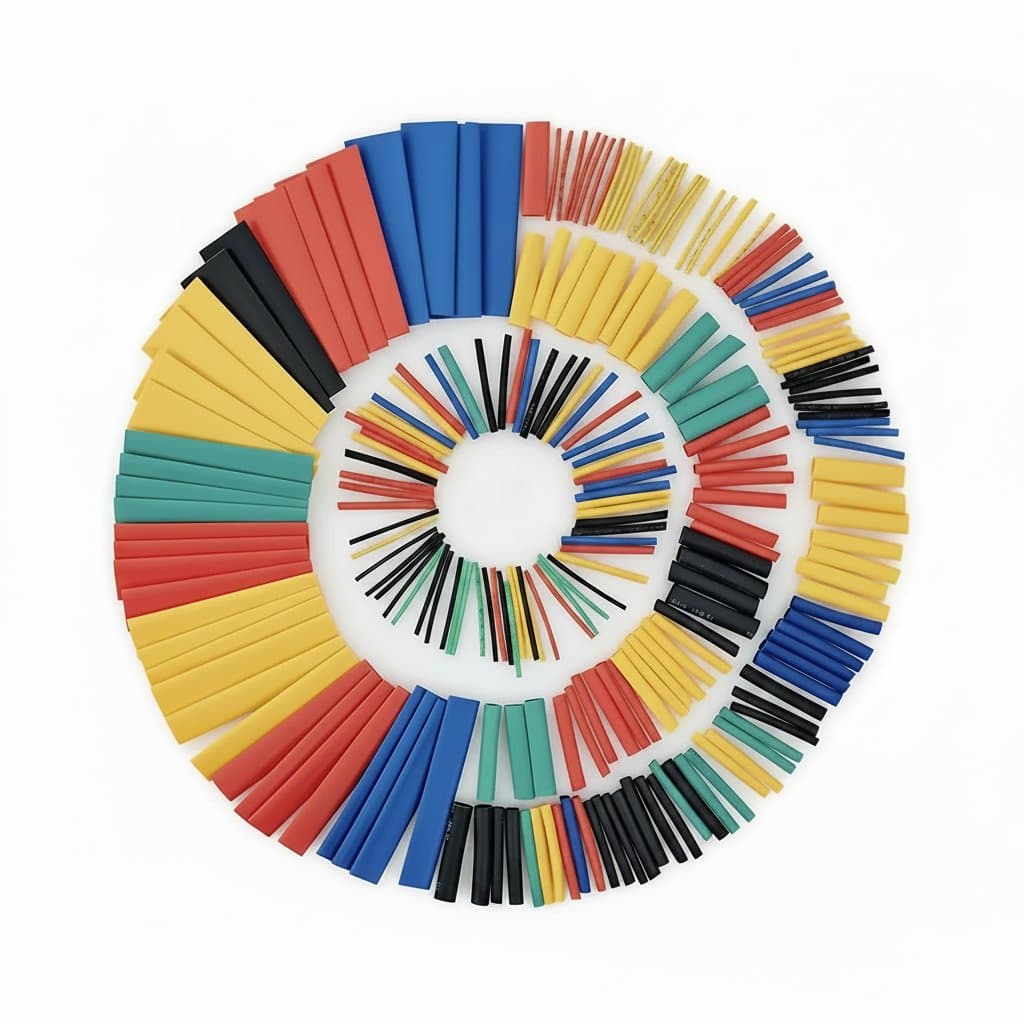
Heat Shrink Tubing Kit | 2:1 Shrink Ratio | 164-328 Pieces, 5 Colors, 8 Sizes

SATA III Cable | 50cm SATA 3.0 6Gbps | SSD & HDD Desktop PC Build

USB-C Hub 8-in-1 Adapter | 4K HDMI, RJ45 & PD | SD/TF Card Reader
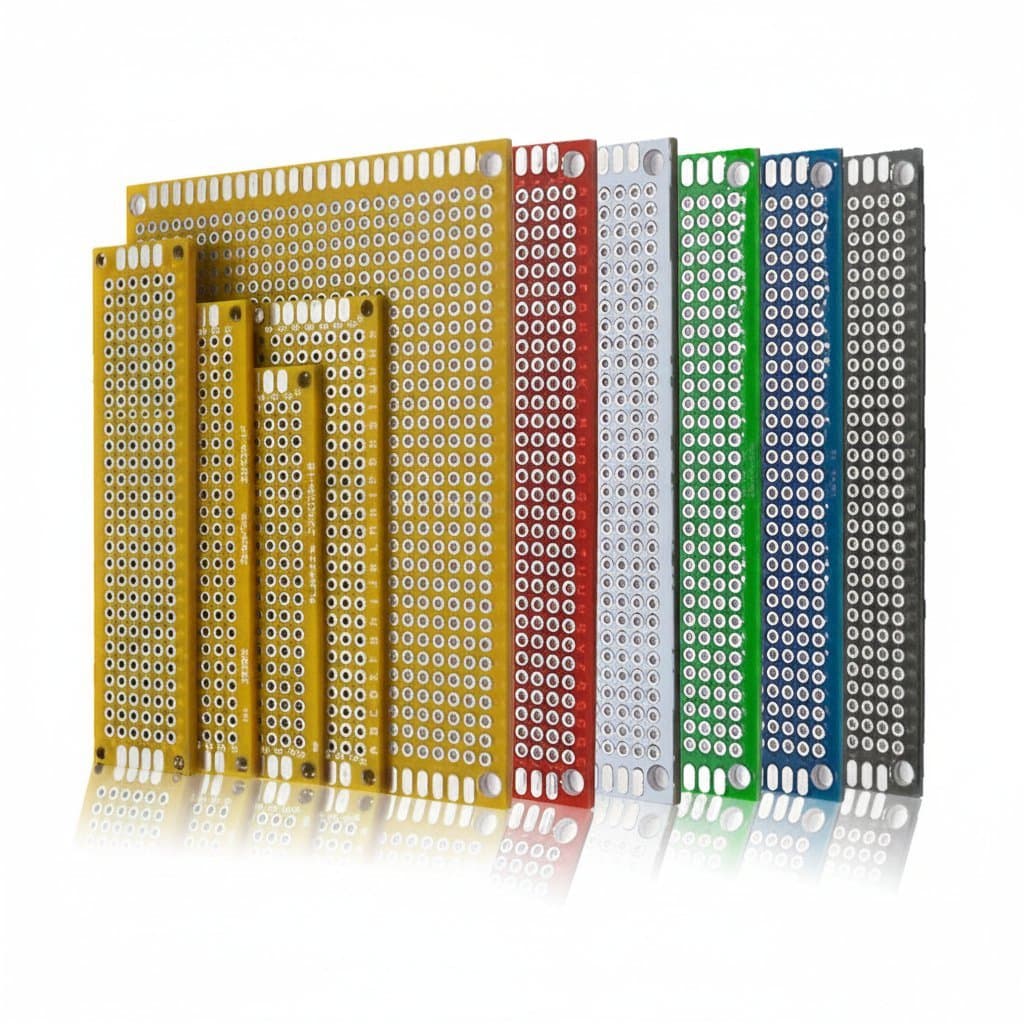
Double-Sided Prototype PCB | 5x7cm Universal Board | DIY Electronics
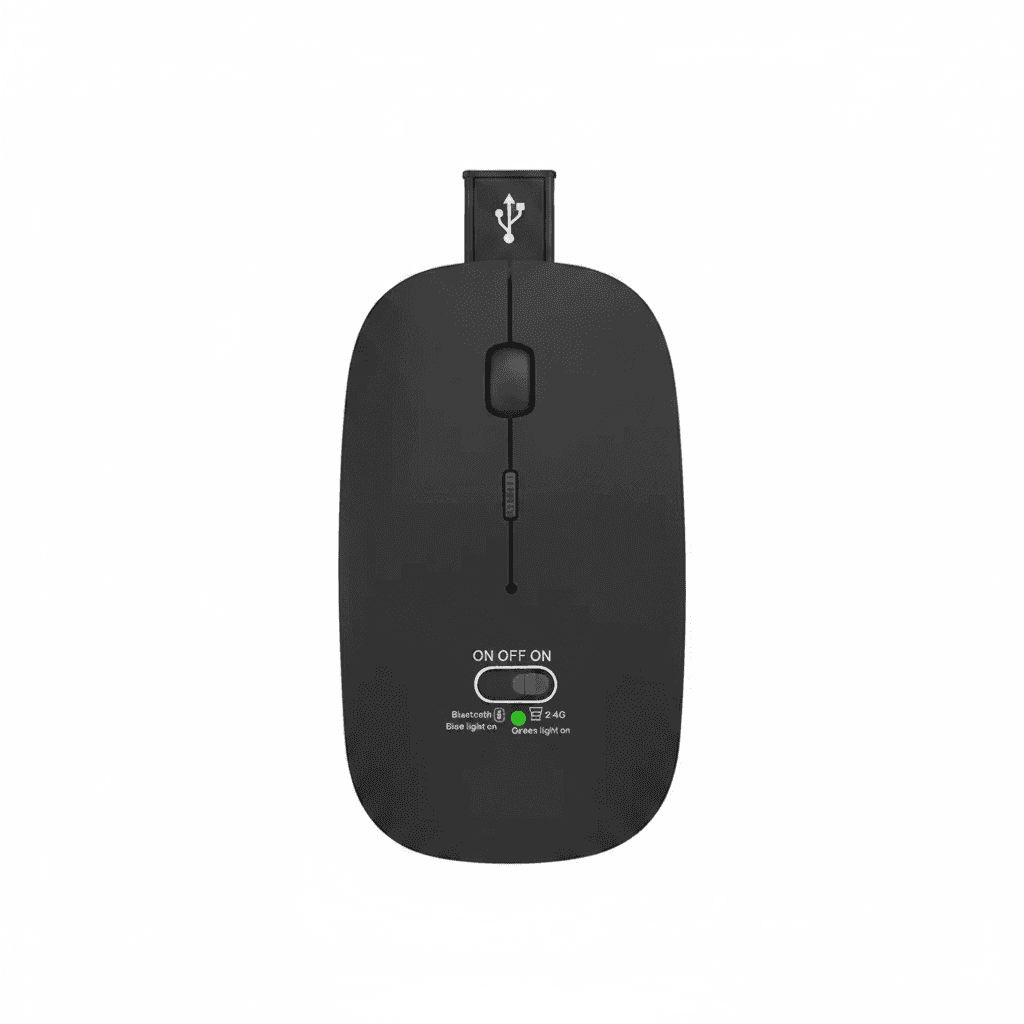
Wireless Mouse | Dual Mode Bluetooth & 2.4GHz | PC Laptop Mac
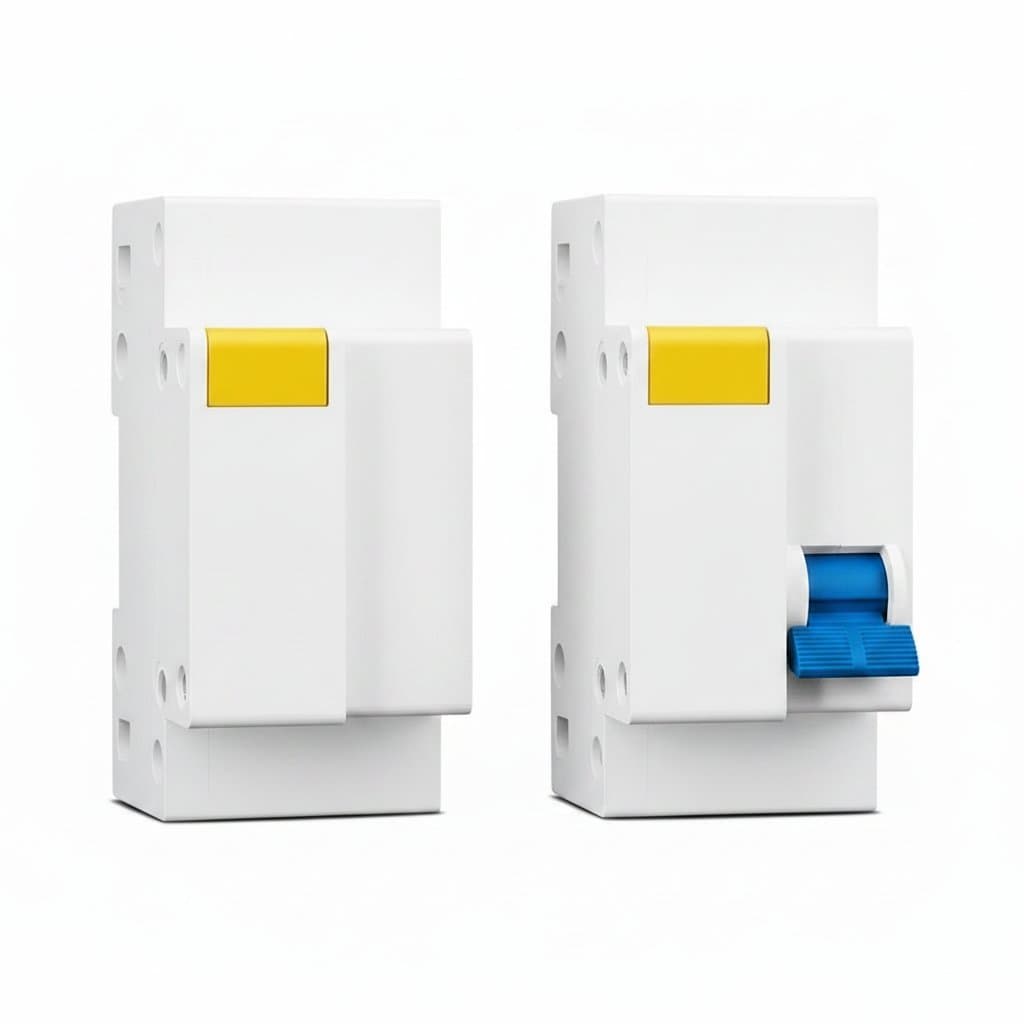
RCBO Circuit Breaker | 230V 1P+N | Overcurrent & Leakage Protection

Flash Drive | 64GB Wooden Bamboo Memory Stick | Custom Logo Wedding Gift
Cat8 Ethernet Cable | SFTP 40Gbps 2000MHz | Router Modem Patch Lead

Hard Drive for PS4 & Xbox | 1TB USB 3.0 Storage | 2.5-Inch HDD

SD Card 256GB | A2 Rated for Faster Apps | Android Phone Game Storage
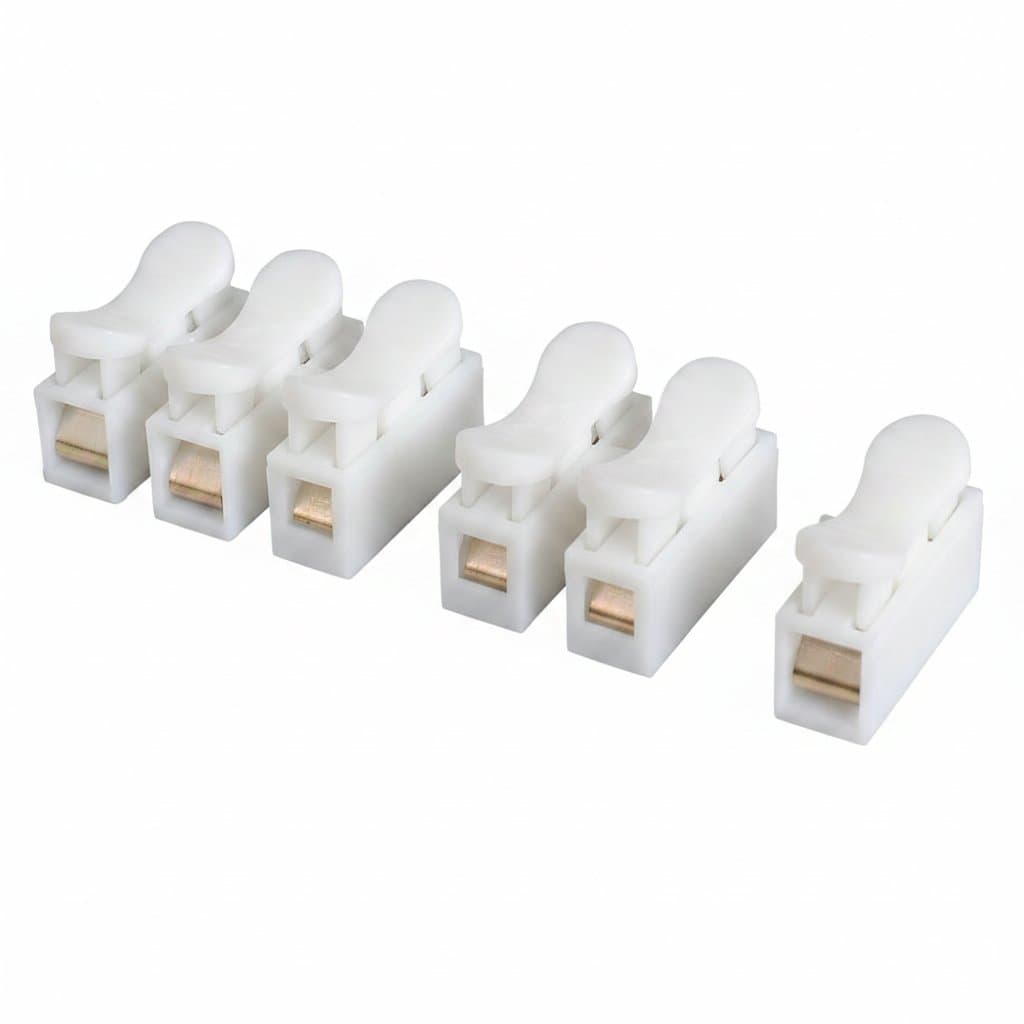
20/50Pcs No Solding Quick 1P 2P Cable Wire Connector No Screw Terminal Block Spring Clamp

M.2 SSD NVMe PCIe 3.0 Drive | 3500MB/s Read Speed | 2280 Internal Form Factor
Complete the set
Accessories & add-ons

SATA Cable 8-Pack | 6Gbps Right-Angle | 0.5M for RAID & Bitcoin Rigs
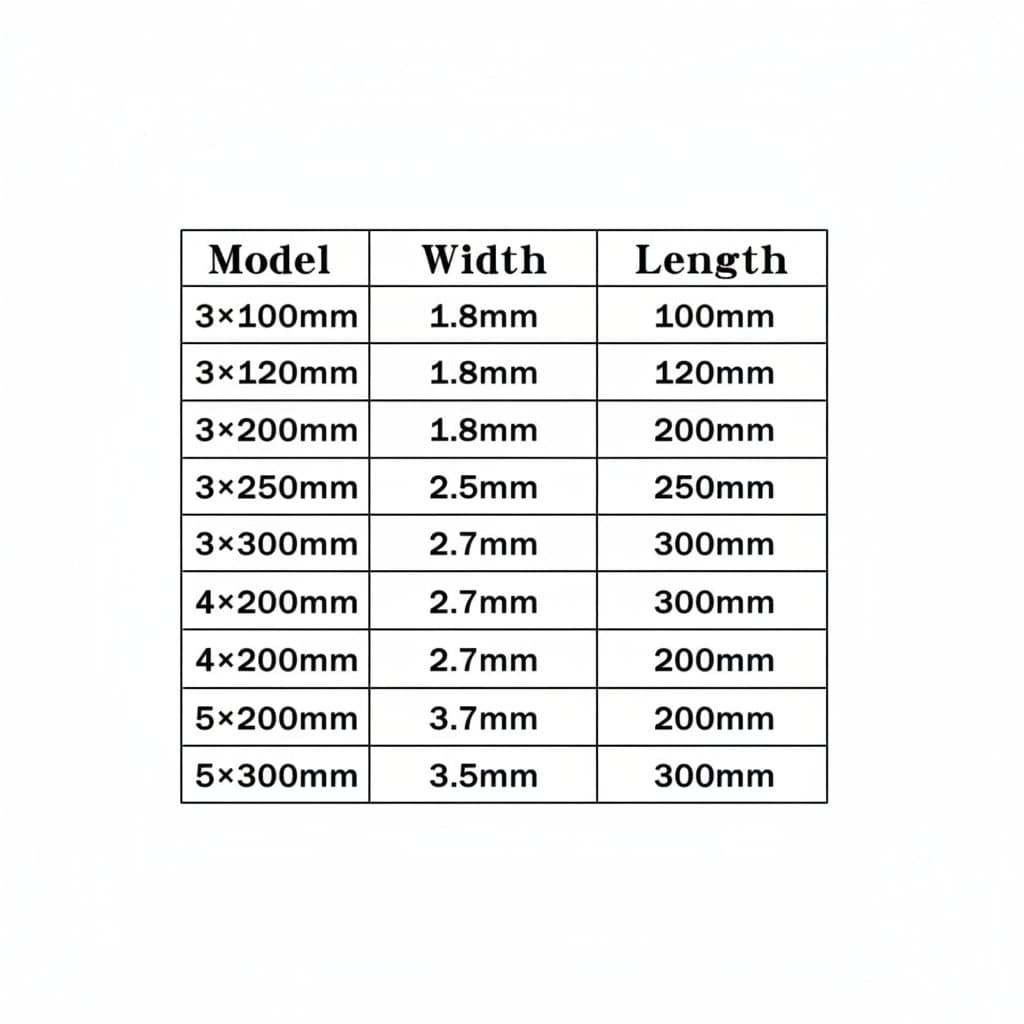
Professional-Grade Cable Management Kit | 500-Piece Nylon Zip Ties | Heavy-Duty Self-Locking Straps
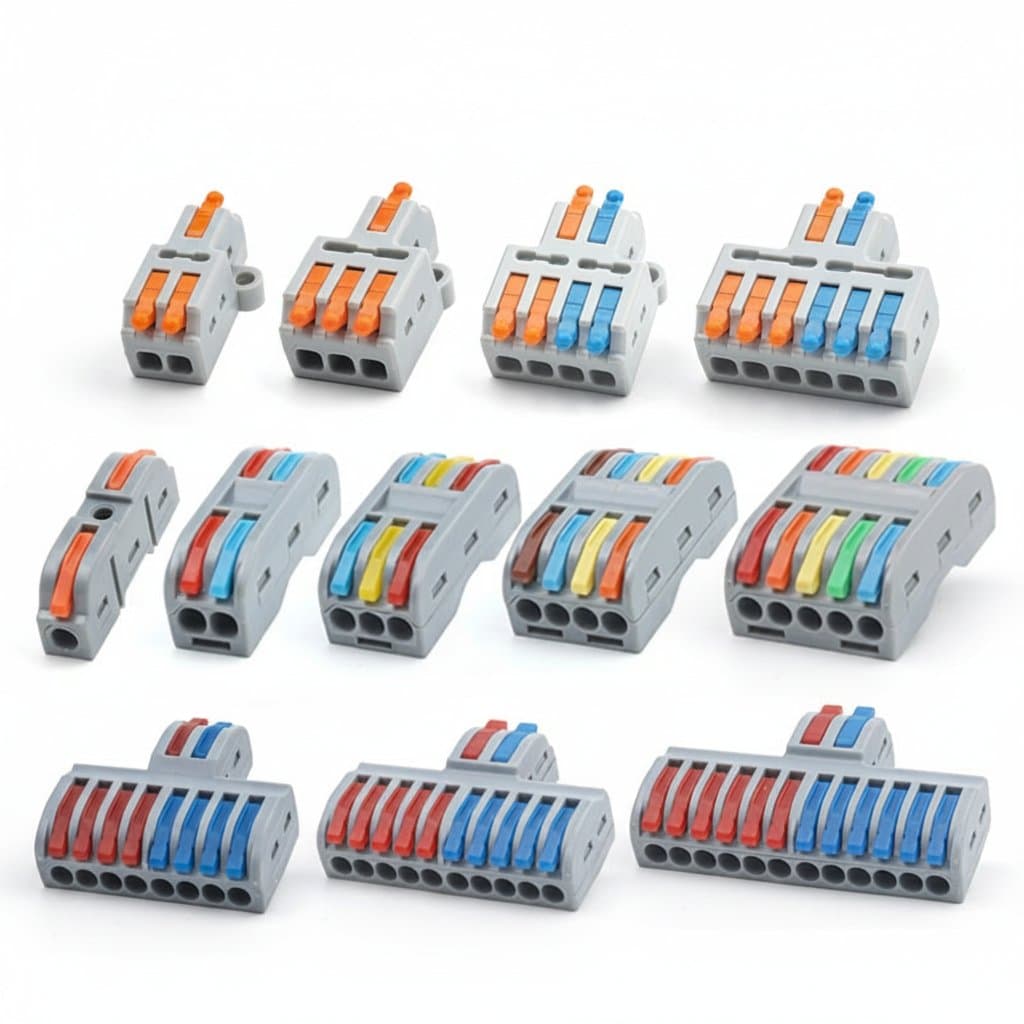
Push-In Wire Connectors | 5-Pack | Fast, Secure Electrical Splicing Terminal Blocks

M.2 SSD Hard Drive Caddy Heatsink | NVMe 2280 Aluminum Cooler | For PS5 & PC

90-Degree SATA Cable | Locking Latch Connectors | SATA III 6.0 Gbps 12-Pack

Drive Caddy | 2.5 to 3.5 inch SSD Mounting Bracket | For Desktop PC Bay
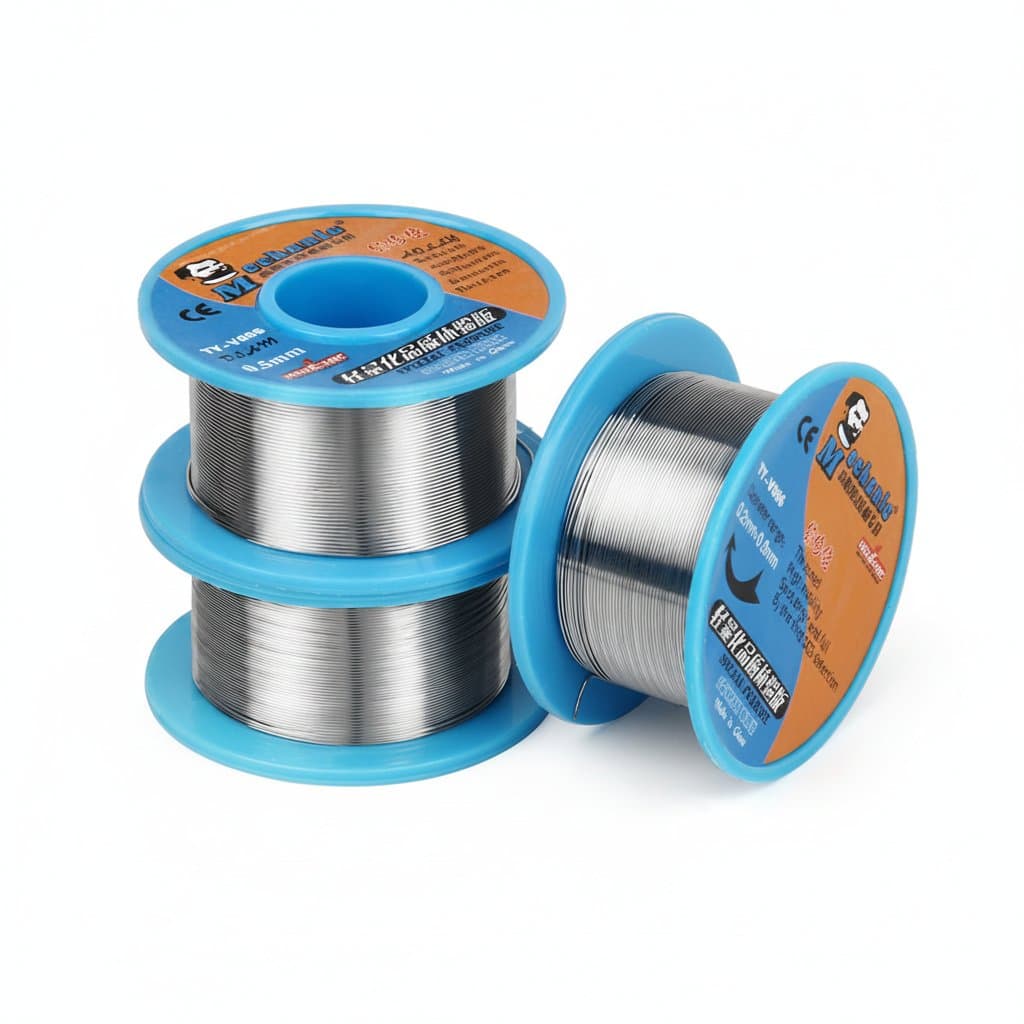
Professional-Grade Solder Wire | 40g Rosin Core | 183°C Melting Point for Precision Electronics Work

Drive Caddy | 2.5 to 3.5 Inch Bay Adapter | For SSD & HDD Mounting
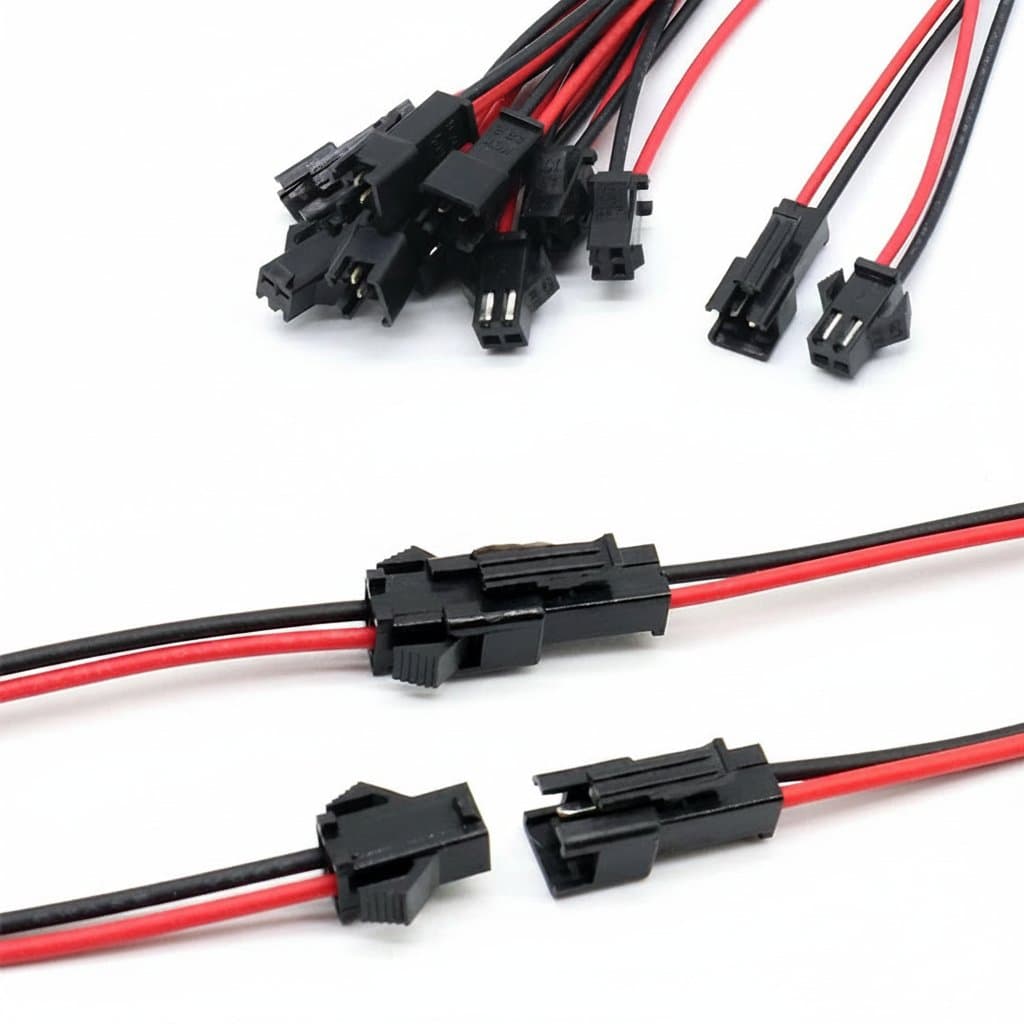
JST SM 2-Pin Connector Kit | 10-Pair Set for LED Strip & Tape Lighting
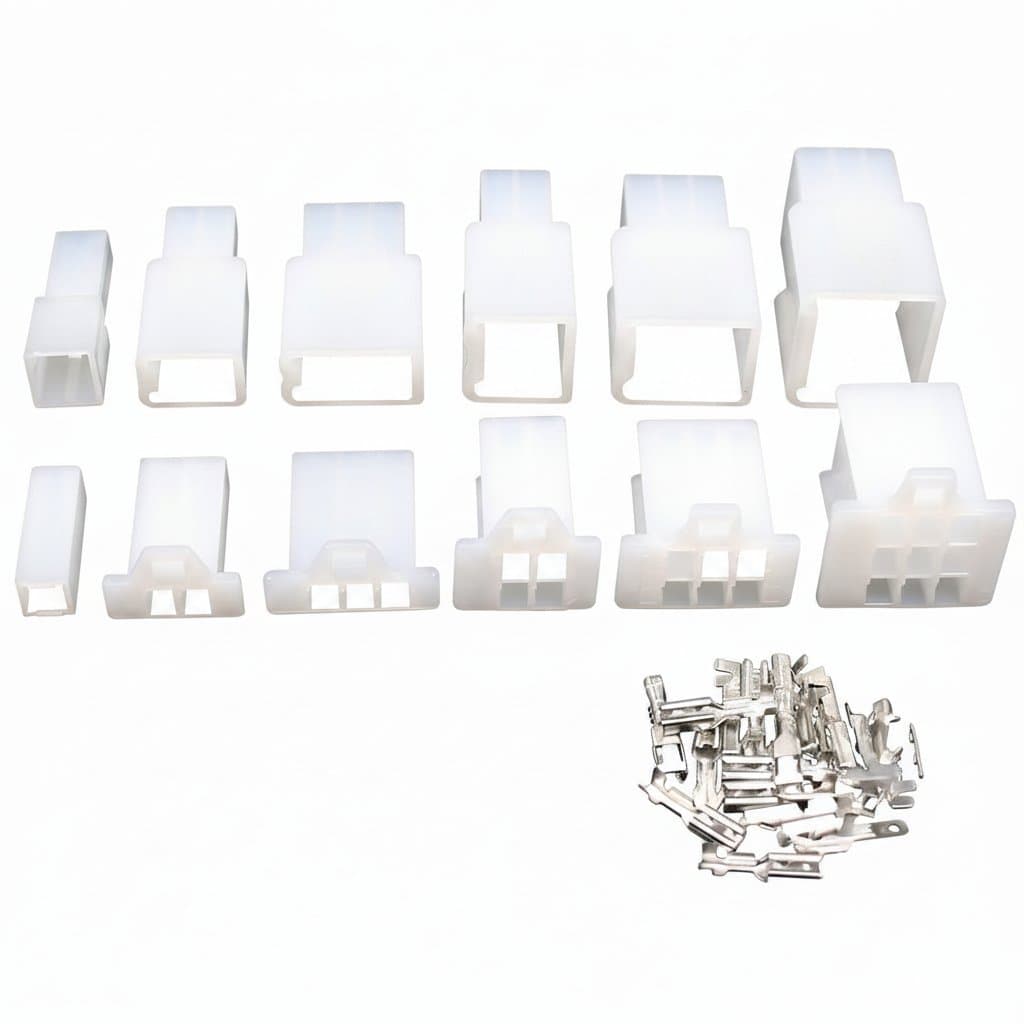
2.8mm Electrical Connector Kit | 2-9 Pin Automotive Terminals | Waterproof Wire Harness Plug Set

Cable Set | 7 Pin to SAS 12Gbps | For Server & NAS Hard Drives
